How to Edit PDF Text Online Without Uploading Your File
Need to change text inside a PDF without installing complicated software? Learn how to edit PDF text directly in your browser while keeping privacy at the centre of the process.
How to Edit PDF Text Online Without Uploading Your File
PDF files are excellent for sharing documents because they preserve formatting across computers and devices. But the moment you need to correct a name, change a date, update an address or replace a sentence, things can become surprisingly difficult.
Many people end up converting the PDF to another format, editing it, and converting it back. That can disturb fonts, spacing, images and the overall layout.
A better approach is to edit the PDF directly.
Can You Actually Edit Existing Text in a PDF?
Yes.
A modern PDF editor can identify text areas inside digitally generated PDF files and allow you to replace or modify their content.
For example, you may want to:
- Correct a spelling mistake
- Change a customer name
- Update an invoice number
- Replace an old address
- Correct a date
- Update a price or description
- Move edited text slightly to match the original layout
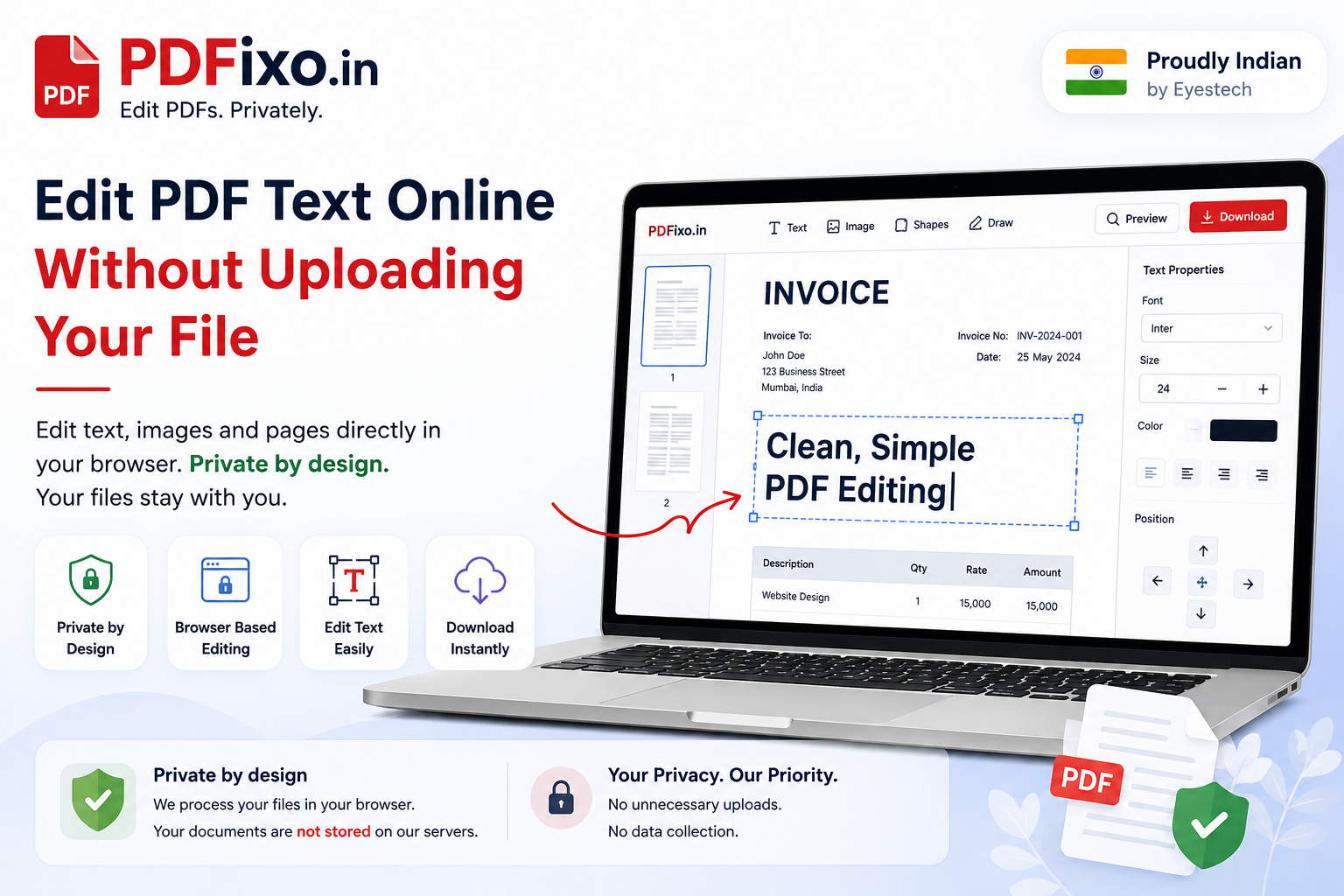
With PDFixo.in, the aim is to make these everyday edits possible directly from a web browser.
How to Edit PDF Text Online
The basic process is simple.
1. Open the PDF editor
Open the PDF editor in your browser and choose the PDF you want to modify.
2. Select the text
Click or tap the text area that needs to be changed.
The editor detects available text regions and gives you editing controls.
3. Replace the text
Enter your corrected text.
For documents where the new text is longer or shorter than the original, you can adjust its size or position so that it fits naturally into the document.
4. Adjust the position
A small difference in positioning can make an edited PDF look unnatural.
PDFixo provides positioning controls so replacement text can be moved:
- Left
- Right
- Up
- Down
This helps align the new text with the original document.
5. Preview your PDF
Before downloading, use Preview to see the document without editing boxes and selection controls.
This is important because the editing workspace and the finished document can look slightly different.
6. Download the edited PDF
Once everything looks correct, download the finished document.
Why Privacy Matters When Editing PDFs
PDFs frequently contain sensitive information such as:
- Names and addresses
- Financial details
- Invoices
- Business documents
- Contracts
- Medical information
- Personal identification details
Uploading such documents to an unknown server simply to correct a few words may not always be desirable.
That is why PDFixo follows a privacy-first approach.
Private by design
For the core PDF editor, document processing is designed to happen inside your browser.
Your PDF does not need to be permanently stored by PDFixo simply because you want to edit its text.
Some specialised PDF tools may require temporary server processing where browser-only processing is not practical. These tools should be clearly identified separately.
The important principle is simple:
Use local browser processing wherever practical and avoid unnecessary document uploads.
What About Scanned PDFs?
There is an important difference between a normal PDF and a scanned PDF.
A digitally created PDF normally contains actual text information.
A scanned PDF may simply contain photographs of pages.
For scanned documents, OCR — Optical Character Recognition — is required to detect words inside the image.
OCR can then make recognised text available for editing.
Results can vary depending on:
- Scan quality
- Font clarity
- Document resolution
- Background noise
- Handwriting
- Language
- Page rotation
For the best results, use a clear, high-resolution scan.
Why Does PDF Formatting Sometimes Change?
PDF documents are not built like Microsoft Word documents.
Text may be stored character by character, use embedded fonts, contain unusual spacing information or have several invisible positioning instructions.
That means replacing five characters with fifteen characters cannot always produce a perfect result automatically.
A good PDF editor therefore needs more than a simple text box.
Useful controls include:
- Font size adjustment
- Text positioning
- Alignment
- Width adjustment
- Preview
- Undo and redo
These controls help preserve the appearance of the original document.
Editing PDFs on a Phone
PDF editing is no longer limited to desktop computers.
A properly designed mobile PDF editor should allow you to:
- Upload a PDF
- Select existing text
- Enter replacement text
- Adjust formatting
- Move edited text
- Preview the document
- Download the result
Mobile editing is especially useful when you need to make a quick correction while travelling or away from your computer.
Do You Need to Install PDF Software?
Not necessarily.
Browser-based PDF tools avoid the need to install another large desktop application for occasional document editing.
For many routine jobs, all you need is:
- A modern web browser
- Your PDF
- A few minutes
This makes online PDF editing particularly useful for students, professionals, small businesses and anyone who only occasionally needs to modify documents.
A Simpler Way to Edit PDFs
PDF editing should not require converting files through several formats or learning complicated professional software.
For everyday corrections, the ideal workflow is:
Open → Edit → Adjust → Preview → Download
PDFixo.in is being designed around this straightforward approach, with particular attention to privacy, simplicity and accurate editing.
Edit PDFs. Privately.
Try the PDFixo.in PDF Editor when you need to update text, images or document content directly from your browser.
Found an unclear step or an outdated detail? Tell our support team.