
Rotate Only the Sideways Pages in a Mixed-Orientation PDF
Fix sideways pages in a PDF while keeping correctly oriented pages unchanged. Identify viewer positions and inspect the exported orientation.
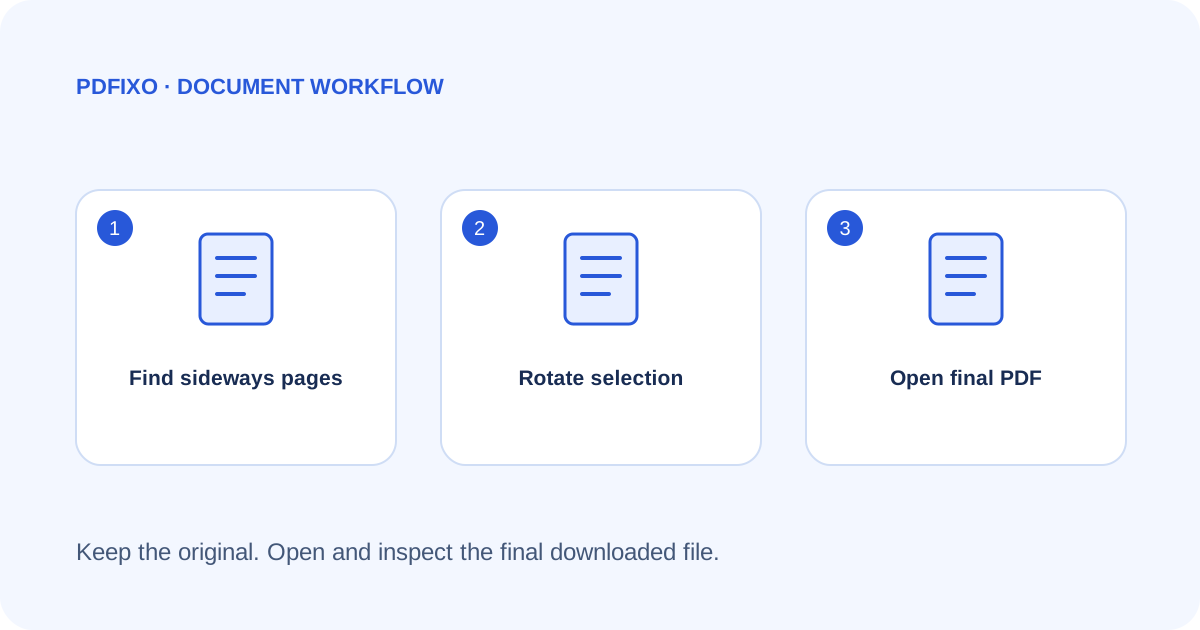
A mixed-orientation PDF does not necessarily need every page rotated. Some pages are intentionally landscape. Rotate the pages whose content is sideways, while preserving pages that are already readable.
For an illustrative example, pages 1 and 2 might be portrait letters, page 3 a correctly displayed landscape table, and page 4 a sideways scan. Page 4 needs attention; rotating the entire file would introduce three new problems.
Separate orientation from page shape
Look at the writing, not just the outline of the page. A wide page with upright text is not the same as a portrait page displayed sideways. Confirm the page positions in your viewer and note the pages that need correction.
Decide the required direction before processing. A quarter turn changes orientation by 90 degrees; another quarter turn may be needed for an upside-down page. Check the result visually rather than assuming the source's stored rotation is zero.
Rotate a chosen subset
- Open Rotate PDF and select the source document.
- Choose the page positions that actually need changing, using the tool's supported selection controls.
- Set the required 90-degree increment.
- Run the operation and use the current authorized download flow.
- Open the downloaded PDF and compare both changed and unchanged pages.
If the wrong pages were selected, restart from the untouched original. Repeatedly rotating an already altered copy makes it harder to track which corrections have been applied.
Check the page content afterwards
Read the headings, table rows and small references. Inspect a landscape table without forcing it into portrait just to make all page outlines match. Try a print preview if the document will be printed, because viewer orientation and printing preferences are separate choices.
For a scan, rotation is not text recognition. The words remain page-image content unless a separate OCR conversion is used. See the scanned-versus-digital guide before deciding whether editing or Word conversion is necessary.
Finish with a stable copy
Check the full page sequence and the total page count. Keep the corrected copy under a new filename and retain the original until the recipient confirms that the file is usable. If a page also contains unwanted content, rotation alone does not remove or obscure it.
The supported operation is documented on PDFixo's Rotate PDF page. This guide does not guarantee that every advanced form, bookmark or viewer-specific behavior survives every source file; test the final document when those features are important.
Found an unclear step or an outdated detail? Tell our support team.