Combine Photos Into One PDF With Readable, Ordered Pages
Turn document photos into one PDF without confusing page order. Check orientation, cropped edges, readability and the final PDF before submitting it.
If a form must be submitted as a PDF but you have phone photos, first make sure each photo contains a readable, complete page. Combining poor photos creates a PDF of poor photos; it does not recover missing words or make the text editable.
Imagine an illustrative three-page form photographed separately. File timestamps can be misleading if the middle page was photographed again. Identify the page contents and order explicitly rather than assuming the newest image comes last.
Prepare the photographs
Check the four page edges, small print and any reference number. A finger, shadow or fold covering a value can prevent someone from reading it later. Retake the photo when the source information is missing; enlarging a blurred image does not reconstruct a reliable number.
Keep the original photos. Rotate them deliberately before preparation if the page is sideways. Avoid aggressive image edits that make punctuation, decimal points or faint handwriting disappear.
Create the PDF
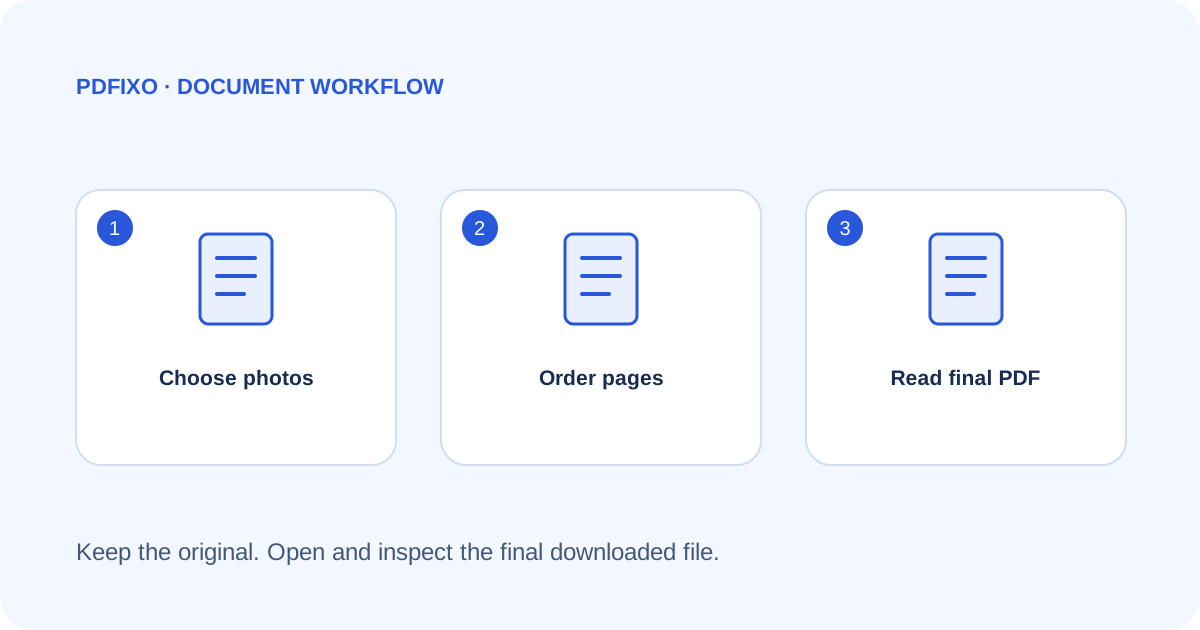
- Open JPG to PDF, which provides the site's image-to-PDF workflow.
- Select the supported images and inspect their order.
- Compare the sequence with the source page labels, especially when filenames are similar.
- Run the conversion and follow the current sign-in and download steps.
- Open the PDF and read each page at a useful zoom level.
Do not assume that a visible preview thumbnail proves the small print is legible. The final PDF should be checked at the size the recipient is likely to use, including a print preview when paper output matters.
Know what this conversion does
An image-based PDF remains different from a digital PDF with selectable text. The scanned-versus-digital explanation helps identify the right next step.
If you need editable Word text, Image to Word is a different task involving OCR. Review its recognized words, dates and table values against the photograph. Converting the same source through several formats is not a substitute for a clean capture.
Submit a checked copy
Confirm that no page is missing, repeated, upside down or clipped. Check the actual upload portal's requirements for file type and size; there is no universal limit for every application. Use a clear final filename and retain the source set until the recipient accepts the document.
For current supported inputs and the conversion entry point, consult PDFixo's JPG to PDF page. Do not claim that creating a PDF certifies the document's authenticity, removes its private content or repairs an unreadable source.
Found an unclear step or an outdated detail? Tell our support team.