Delete Unwanted PDF Pages: A Safe-Sharing Checklist
Remove unwanted pages and verify the remaining document. Check viewer page positions, continuity and private content still visible on retained pages.
Deleting an unwanted page is different from removing private information from a page you keep. Use page deletion when an entire page should be excluded, then inspect everything that remains before sharing.
As an illustrative example, a ten-page report may include a duplicate cover at position 2 and an unrelated blank scan at position 8. Removing those positions should leave eight pages. That count is useful, but it does not tell you whether the remaining pages contain the right information.
Confirm the positions
Open the original PDF and identify the viewer positions of the pages to remove. Printed page labels may differ because of covers, inserts or appendices. Write down the exact selection and compare each selected page against the source.
Watch for context across page boundaries. A removed page could contain a table heading, explanatory note or signature statement needed by a page that remains. Do not remove a page solely because it appears mostly blank.
Remove only the intended pages
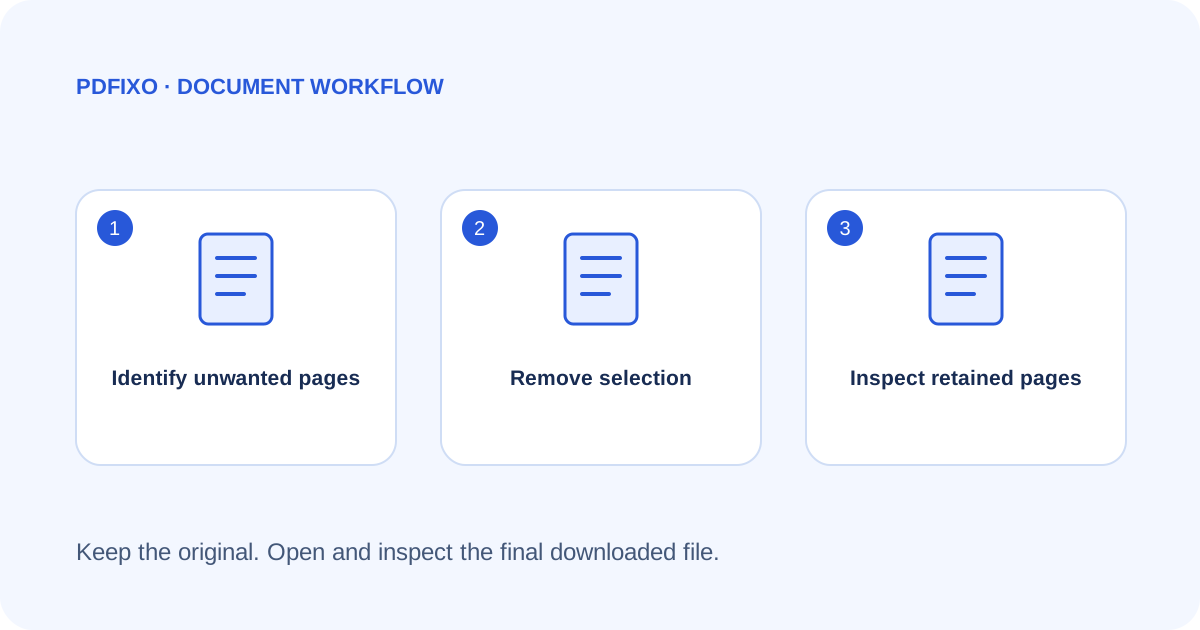
- Open Delete PDF Pages and select your PDF.
- Enter the exact page positions or supported ranges to remove.
- Read the selection carefully before running the operation.
- Download through the website's current authorization flow.
- Open the result and compare it with the original selection plan.
If the selected range is invalid, resolve the page-number issue rather than substituting a guessed range. Keep the original so you can recover a mistakenly removed page.
Check what remains
Confirm the expected count, page order, first and last pages, and continuity of paragraphs and tables. Review names, addresses, account references and other private content on every retained page.
Deleting pages is not a comprehensive sanitization or redaction guarantee. This guide does not claim that page deletion removes all metadata, attachments or hidden information in every PDF. For sensitive sharing, use an appropriate reviewed redaction and sanitization workflow and seek help when you are uncertain.
Choose the right operation
If you want to keep just a few pages rather than remove a long list, Split PDF may provide a clearer extraction workflow. A scan still contains image-based text after page operations; the scan-versus-digital guide explains that distinction.
Refer to PDFixo's Delete PDF Pages page for the supported task. Before sending the final file, open it independently and confirm that it contains exactly what you intended to share. A successful processing message is not a privacy review.
For a primary-source explanation of a dedicated removal workflow, see Adobe's redaction and sanitization instructions. That is separate software guidance, not a claim that PDFixo's page or watermark tools perform those operations.
Found an unclear step or an outdated detail? Tell our support team.