How to Find a Downloaded PDF on Android Before Sharing It
Locate the PDF you downloaded on Android, distinguish the original from the processed copy, and check its contents before sending the file.
When you download a PDF on an Android phone, the browser may save it separately from the original document. Find the new file and open it before sending it, rather than assuming the first matching filename is the correct result.
Locate your downloaded file
Open your phone's file manager. If you use Files by Google, browse the relevant storage location or document category. You can open the PDF from the file list and inspect its details through the file information option.
In the grid view, long-press the file and open its additional options. In list view, use the menu beside the file. Google's official file information instructions explain how to reach File info and inspect the location and modification time. Other Android file managers may use different labels.
Example: find the result of merging documents
Suppose you started with two PDF attachments and need to submit one combined file. Keep both originals until the new copy has been verified.
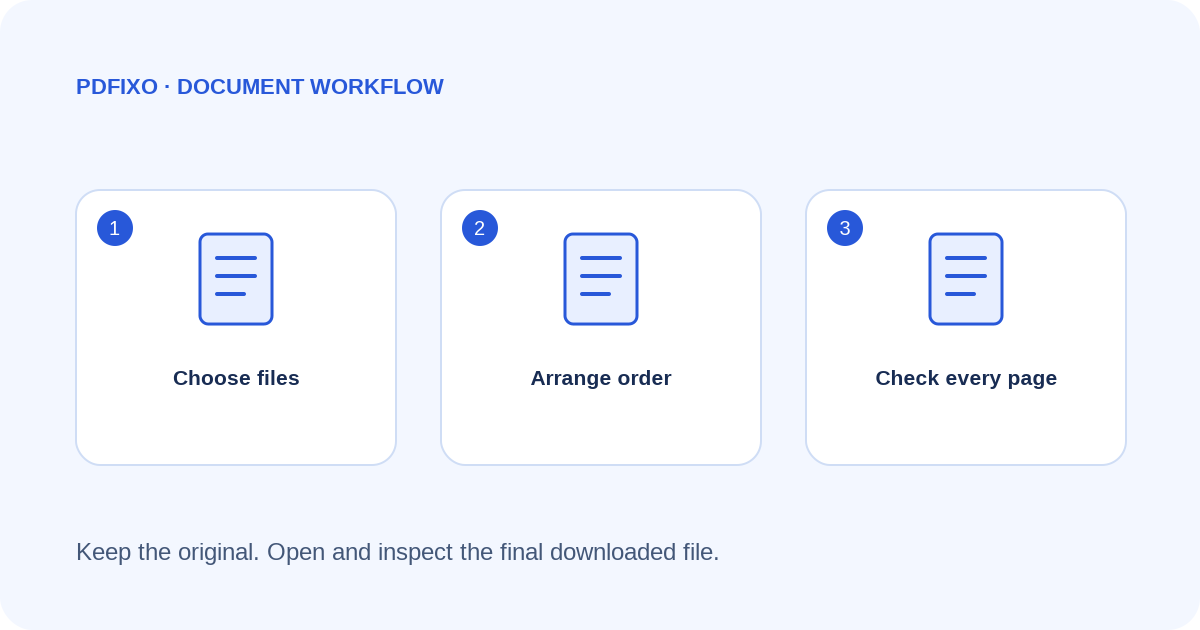
- Open PDFixo Merge PDF in a compatible browser and select the documents.
- Check their intended order, run the tool and follow the displayed sign-in and download instructions.
- Check the browser's downloads list or the relevant folder in your file manager for the newly saved document.
- Open the result. Check that the first page of the second attachment follows the last page of the first attachment.
For more checks on the merged output, read Merge PDFs in the right order.
Avoid sending an outdated copy
Two files may have nearly identical names. Compare the file location and modification time, and open the candidate file to inspect its actual content. You can rename the checked result using the file manager if appropriate, keeping the PDF extension.
A timestamp is only a clue; it does not prove that the document contains the intended pages. Verify the page count and read important information such as names and reference numbers.
If you cannot locate the download
Check whether the browser reports a completed download. If the download failed or your phone cannot complete the operation, follow the displayed error instructions or use a compatible desktop browser. Do not delete your source files while troubleshooting.
Use the checked copy when attaching the document to an email or online form. This workflow helps prevent sending a previous version accidentally, but does not replace the recipient's actual submission requirements.
Found an unclear step or an outdated detail? Tell our support team.