How to Check a PDF File Size on iPhone Before Uploading
Find your PDF in iPhone Files, check its size, create a smaller copy if needed and verify the result before submitting an online application.
Before submitting a PDF from an iPhone, check its actual size in the Files app. If it exceeds the recipient's limit, create a smaller PDF copy and check that the resulting document is readable. A ZIP archive is not the same as a compressed PDF.
Find the correct file and check its size
- Open the Files app and locate the PDF in Browse, Recents or your Downloads folder.
- Touch and hold the PDF and choose Get Info. Check the file details and make sure you have selected the intended version.
- Compare its size with the actual upload limit displayed by the receiving website. Do not rely on the filename or the number of pages alone.
Apple explains how to locate files and access the Get Info command in its Files guide for iPhone. The exact layout may differ by iOS version.
Create a smaller PDF without replacing the original
For example, imagine a 4 MB application attachment and a portal that accepts a maximum of 2 MB. Those are illustrative numbers; the actual portal may have different rules.
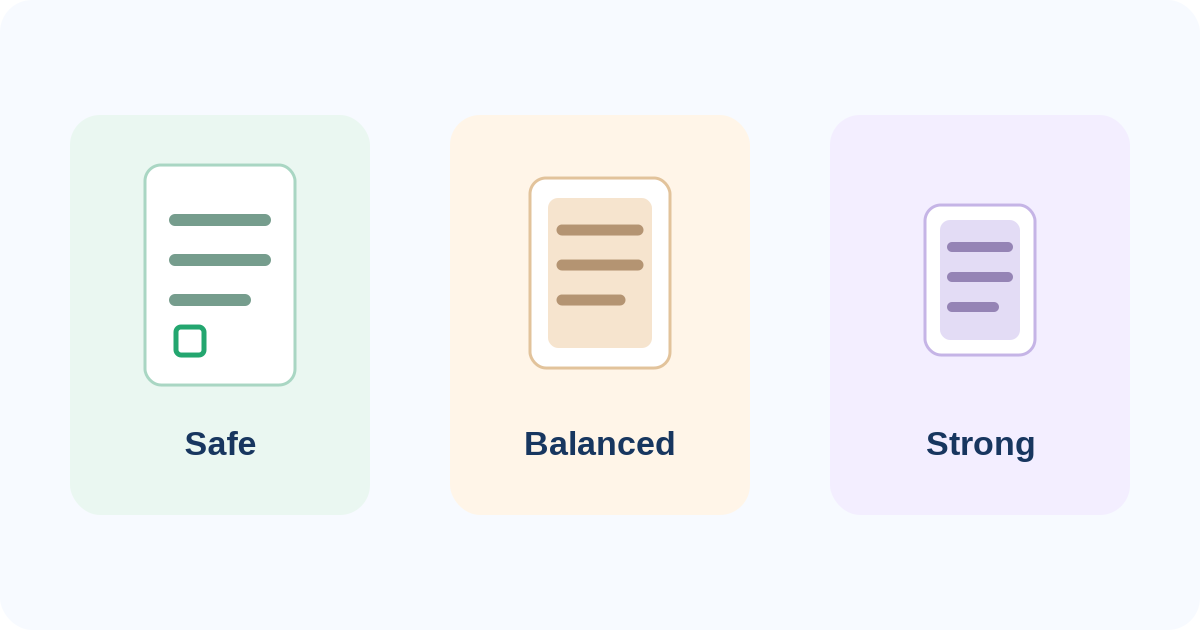
Open PDFixo Compress PDF in your browser and select your original document. The tool offers Safe, Balanced and Strong options. Start with Safe when selectable text or fillable fields matter. Balanced and Strong produce flattened copies, which may be unsuitable for interactive forms. Follow the download and account instructions shown on the website.
If your phone cannot complete the conversion, use a compatible desktop browser. Keep the original available and never assume a particular reduction percentage. For current limits, see PDFixo pricing.
Find and check the resulting PDF
Once the browser has saved the result, locate it in Files. Use Get Info again to check its size and confirm the extension is PDF, not ZIP. Open the document and inspect each page, especially tiny print, dates, names and any barcode or QR code that needs to remain readable.
If text selection matters, try selecting a word. A page can look correct yet no longer contain selectable text; see why PDF text cannot be selected.
Submit only the checked copy
Upload the smaller file only after confirming the size, page count and recipient's format requirements. If it remains too large or becomes unreadable, keep the original and ask whether the recipient accepts multiple attachments or a larger file. Do not repeatedly compress the same degraded copy.
Found an unclear step or an outdated detail? Tell our support team.