Merge PDFs in the Right Order: A Page-by-Page Checklist
Combine PDFs without mixing up attachments. Plan the order, merge the files, then check page count, orientation and key details in the downloaded document.
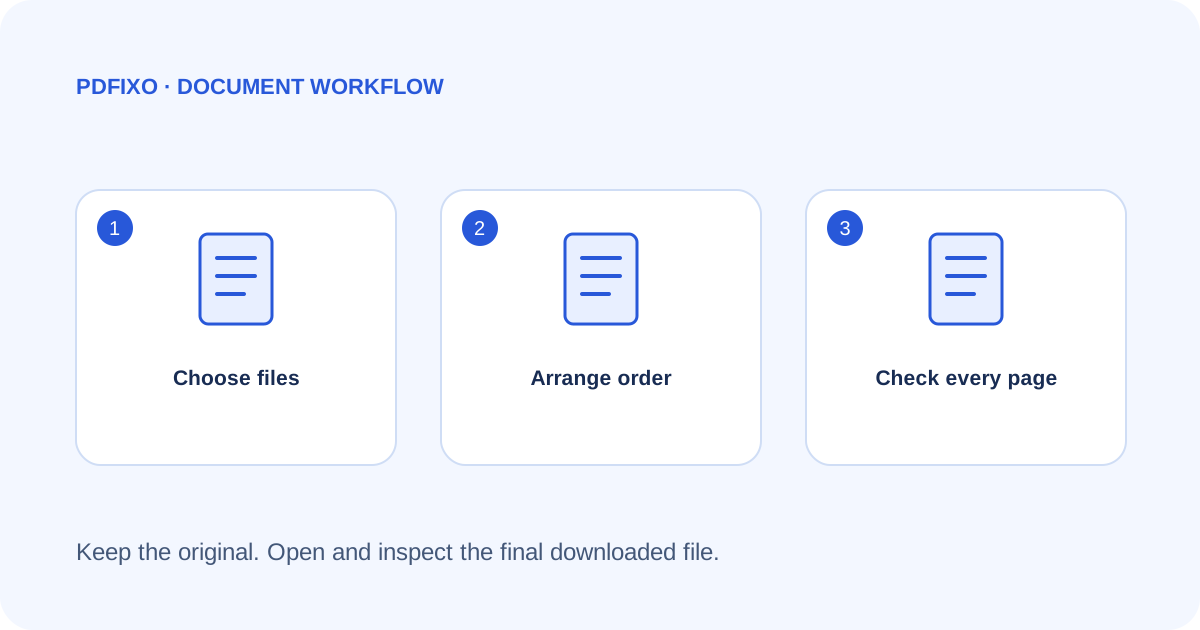
Combining documents is easy to get wrong when several attachments have similar names. Decide which document comes first before merging, and check the downloaded PDF—not just the list of filenames.
For an illustrative example, imagine three files: a two-page cover letter, a four-page report and a one-page appendix. The intended result has seven pages. Page 1 should be the cover letter, the report should start on page 3, and the appendix should be page 7. These are example counts, not a claim about every source file.
Make an order map
List the filenames and the page count you expect from each. Use descriptive names such as cover-letter.pdf, report.pdf and appendix.pdf while preparing the files. Names alone do not prove their contents: open the originals and confirm the first and last pages.
If a source is scanned, merging does not turn the scan into editable text. The distinction is explained in scanned versus digital PDFs. Keep the originals until the final file has passed your check.
Combine the files
- Open Merge PDF and choose the PDF files you intend to include.
- Inspect the selected-file list and arrange it in the intended document order.
- Run the merge operation. Read any error before retrying; a damaged or unsupported source should be investigated individually.
- Follow the site's current sign-in and download requirements to obtain the result.
- Open the downloaded PDF in a viewer and compare it with your order map.
Check the joins, not just the first page
Look at the last page of each source and the first page of the next one. A correct cover page can hide a duplicated attachment or a missing appendix further down. Confirm the total page count and check that portrait and landscape pages remain readable.
Merging is a page-combination task. It does not reconcile conflicting page labels, fix spelling, remove private information or create a reliable contents page automatically. If individual pages need extracting, use the separate Split PDF tool before merging the prepared subsets.
Before sending the merged PDF
Check the recipient list, attachments, page order, names and dates. Avoid uploading unnecessary personal information, and consult the site's privacy information if the files are sensitive. Keep a clearly named final file separate from the original inputs.
The documented entry point and task are available on PDFixo's Merge PDF page. If the document will be submitted through a portal, check that portal's actual file-size and page requirements; this guide does not replace its rules.
Found an unclear step or an outdated detail? Tell our support team.