A PDF Watermark Is Not Redaction: Use It for the Right Task
Use a text watermark to label a PDF, not to conceal sensitive information. Check placement, readability and the final document before sharing.
A text watermark can label pages with wording such as “DRAFT” or “REVIEW COPY”. It should not be treated as a way to remove private information. Adding text over an account number does not establish that the underlying number is gone.
Consider an illustrative report awaiting approval. A “DRAFT” label can help readers identify its status. That is a labelling purpose, not an assurance that the document cannot be copied, modified or read.
Choose clear wording
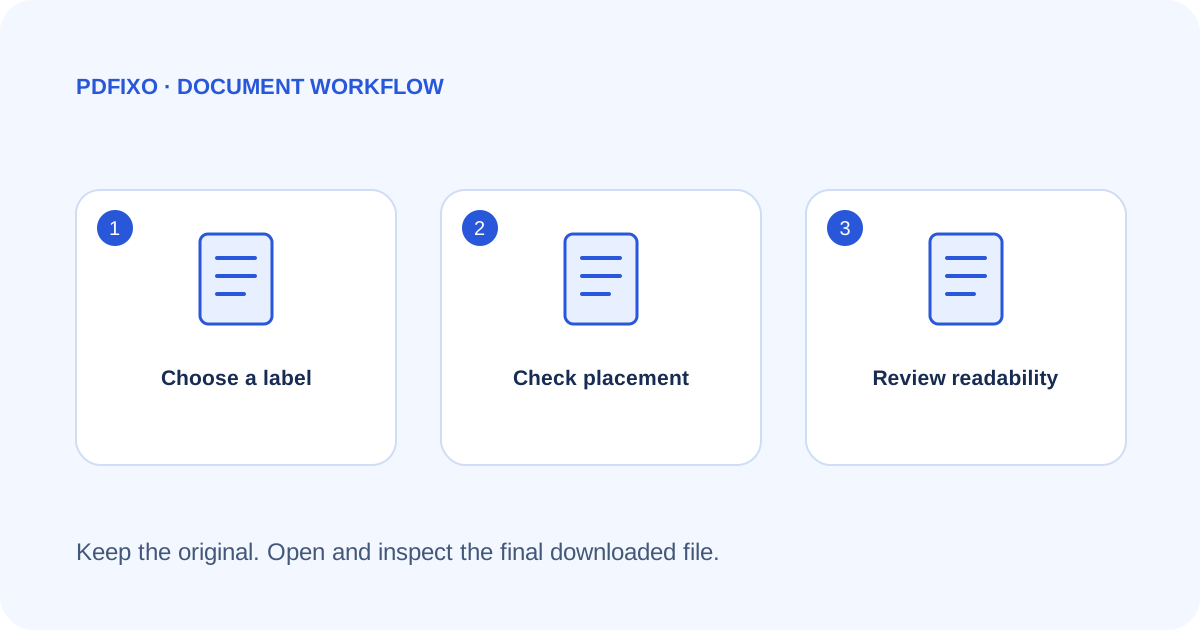
Keep the watermark short and accurate. Do not label a file “APPROVED” unless the appropriate person has actually approved it. Avoid including private details in the watermark itself.
Decide whether the label will interfere with small print, a table total or a signature area. Page layouts can differ within the same document, so a placement that works on the cover may be awkward on later pages.
Apply the label
- Open Watermark PDF and choose the source PDF.
- Enter the intended watermark text.
- Adjust the available size and opacity settings carefully.
- Run the tool and download using the website's current authorization flow.
- Open the final file and inspect every page where the label could cover important information.
Read the actual content at a useful zoom level and, when printing matters, inspect a print preview. A faint label might be hard to see on paper; an overly strong label can make a document difficult to read.
Do not substitute a watermark for removal
This tool's documented task is adding a text watermark. It is not a comprehensive redaction or document-sanitization service. Sensitive material may still be visible, selectable or present elsewhere in a file even when another object is placed on top of it.
For a privacy-sensitive document, review the actual information that must be removed and choose a suitable, verified workflow. See PDFixo's privacy information, and do not upload unnecessary personal information.
Check the right final output
Retain the original, name the labelled copy clearly and compare important values with the source. If text itself needs a correction, use a separate editing workflow rather than using a watermark to hide the mistake; the small PDF correction guide explains that task.
For the current supported labelling operation, consult PDFixo's Watermark PDF page. A watermark is a communication aid. It does not by itself enforce permissions, certify authenticity or prove that a file is safe to share.
For a primary-source explanation of a dedicated removal workflow, see Adobe's redaction and sanitization instructions. That is separate software guidance, not a claim that PDFixo's page or watermark tools perform those operations.
Found an unclear step or an outdated detail? Tell our support team.