How to Fix a Typo, Date or Number in a PDF Without Converting to Word
Make a small correction directly in a PDF when the text is selectable, then check font, spacing and layout before downloading.
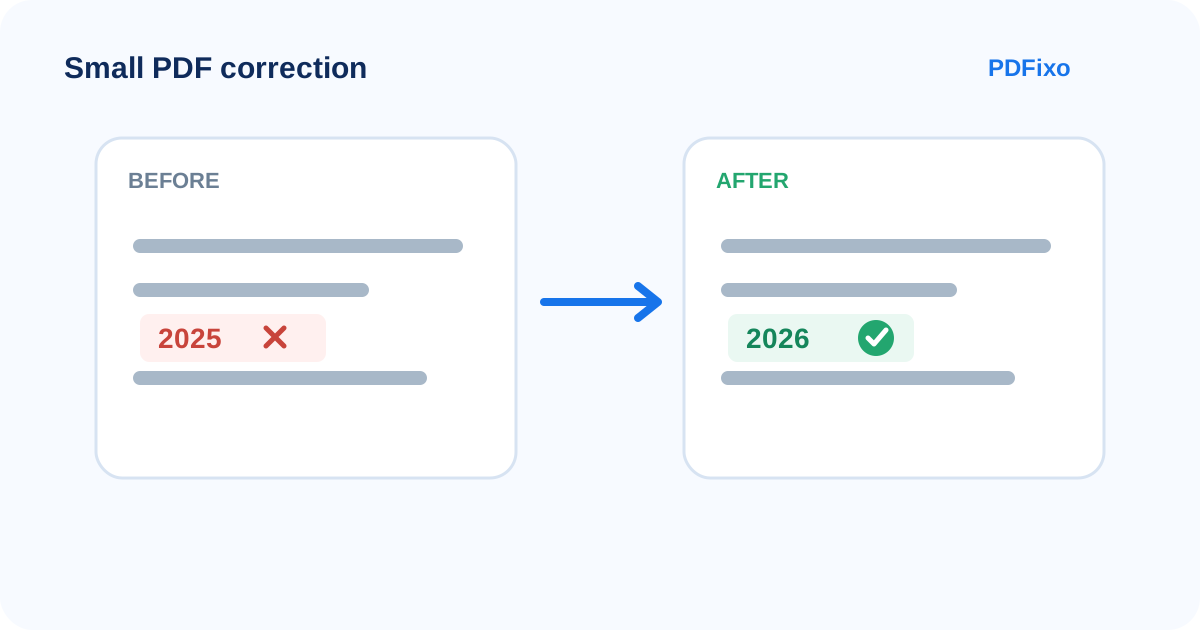
If you only need to correct one word, update a date, or change a number in a PDF you are authorized to edit, converting the entire document to Word is often unnecessary.
For a digitally generated PDF with selectable text, the narrower workflow is usually:
- open the PDF in an editor that can modify existing text;
- click the text you need to change;
- replace only the incorrect part;
- match the surrounding formatting;
- review the full line or paragraph before downloading.
Conversion to Word becomes more useful when the PDF is image-only, when the change affects large sections of text, or when the original layout no longer has enough room for the replacement.
First, check whether the text is actually editable
Before changing anything, try selecting the word or number.
If you can highlight individual characters or words, the page probably contains a usable text layer. That is the best case for a small direct correction.
If the page behaves like one large image, the words may be part of a scan. In that case, OCR is the relevant first step rather than ordinary text editing.
If you can select text but editing is blocked, check the document's permissions. Do not treat OCR or conversion as a way to bypass restrictions you are not authorized to remove.
For a deeper diagnosis, see why PDF text may not be selectable.
When direct PDF editing makes more sense than Word conversion
Direct editing is a good fit when the job is small and local.
Examples include correcting:
- a spelling mistake in your own brochure or report;
- a date in an internal memo you are permitted to update;
- a reference number in a draft form;
- a phone number or email address in a company document you control;
- a short heading or label.
In these cases, converting to Word adds another transformation that you may not need. A PDF-to-Word converter has to reconstruct editable document structure from a fixed-layout PDF, and that reconstruction can affect spacing, page breaks, tables or other complex elements.
If the original PDF is already close to final, a targeted correction lets you change less.
How to make a small correction in PDFixo
PDFixo's Edit PDF workspace supports existing selectable text in digitally generated PDFs.
1. Open the PDF
Open PDFixo Edit PDF and choose the document you are authorized to modify.
Work from an untouched copy when the file matters. Keeping the source gives you a clean fallback if the replacement does not look right.
2. Select the existing text
Click the detected text region containing the typo, date or number.
For a small correction, edit the existing text rather than covering it with a new text box unless the document structure makes direct replacement impractical.
3. Replace only what needs changing
Keep the replacement as close as possible to the original length when the surrounding layout is tight.
Changing:
2025 → 2026
is unlikely to create the same spacing problem as changing:
Short title → A much longer replacement heading
The amount of available space matters because PDF pages do not reflow like a normal Word document.
4. Match the surrounding appearance
PDFixo exposes manual controls for font family, size, colour, background, bold, italic and underline.
Start with the most visible differences:
- font family;
- font size;
- weight;
- colour;
- background behind the text.
Then inspect the spacing around the replacement.
A matching font name alone does not guarantee an identical result. Embedded fonts, unavailable fonts and different font metrics can make replacement text look wider, narrower, heavier or lighter.
If the replacement looks wrong even after the text itself is correct, see why edited PDF text can look different.
Why a small replacement can still affect layout
PDF is designed to preserve a page's final appearance. It is not a flowing document model like Word.
That means a line often has a specific amount of space available.
If the new text is longer, several things can happen depending on the PDF and the editor:
- the replacement may extend toward nearby content;
- spacing may look tighter;
- the text may need a smaller size;
- a manual position adjustment may be needed;
- the edit may simply be too large for a clean direct correction.
Do not solve every fit problem by shrinking the font aggressively. A smaller font may technically fit while making the correction visibly inconsistent with the rest of the document.
A practical check before you download
After changing the text, do not inspect only the edited word.
Check the entire line, then the entire page.
Look for:
- a font that is slightly different from surrounding text;
- letters touching nearby content;
- a date or number that shifted out of alignment;
- an opaque background covering a line or border;
- changed text that is noticeably smaller or larger;
- a replacement that overlaps another text block;
- unexpected changes to nearby content.
If the document will be printed, a quick print-preview check can also reveal spacing or margin problems that are easy to miss on a phone.
What if the PDF is scanned?
A scanned page may show clear words on screen while storing only an image.
In that situation, ordinary direct text editing may not have a real text object to modify.
PDFixo supports OCR-enabled handling for scanned pages. If you need the scanned content as a more editable document, PDFixo PDF to Word can recognize scanned text and create a DOCX for further work.
Use OCR carefully. Names, dates, numbers, amounts and identifiers deserve manual verification because a single recognition error can change meaning.
When conversion to Word is the better choice
Direct editing is not always the right tool.
Consider conversion when:
- you need to rewrite several paragraphs;
- the same phrase must be changed many times;
- the PDF contains complex text that does not fit cleanly after editing;
- the document is scanned and you need extensive text changes;
- you need Word-style find-and-replace across many occurrences;
- the original PDF was generated from an editable source that you no longer have.
Smallpdf's current guidance makes a similar distinction: manual direct editing is often suitable for a few corrections, while repeated changes across a long document are better handled in Word after conversion.
Even then, review the converted layout before treating it as final.
What should you not edit casually?
A PDF editor is a tool; whether a change is legitimate depends on the document and your authority to modify it.
Use direct editing for documents you own or are authorized to update.
Do not alter official records, signed documents, identification, certificates, financial records, invoices, contracts or other documents in a way that misrepresents facts or creates a false record.
If an official document contains an error, use the issuing organization's correction process where one exists.
Three examples where direct editing is appropriate
Correcting a typo in your own brochure
A product description says “avaliable” instead of “available.”
The text is selectable, the replacement is nearly the same length, and the rest of the page is final.
This is a strong direct-edit case.
Updating a date in an internal draft
A meeting memo you are authorized to revise shows the wrong internal review date.
The date is selectable and the new date fits the same space.
Again, direct editing is narrower than converting the whole document.
Fixing a reference number in a draft form
A draft template contains an incorrect internal reference number.
If you control the document and the text is selectable, change only the incorrect value and then check alignment with nearby labels or boxes.
The shortest rule
Use this decision:
One or a few small corrections + selectable text → edit the PDF directly.
Scanned/image-only text → use OCR.
Large rewrite or many repeated changes → consider PDF-to-Word.
Editing blocked by restrictions → check permissions rather than trying to bypass them.
Next step
For a small permitted correction, open PDFixo Edit PDF, change only the text that needs updating, and inspect the complete line and page before downloading.
If the page is scanned or the change is too large for a clean direct edit, switch to PDFixo PDF to Word instead.
Found an unclear step or an outdated detail? Tell our support team.