Why Can’t I Select Text in a PDF? 3 Causes and What to Do
Find the three main reasons PDF text may not be selectable—image-only scans, restrictions or unusual text layers—and choose the right next step.
You can see the words on the page, but dragging across them does nothing. Copy does not work. Search may return no results. Clicking the sentence in a PDF editor may select the whole page instead of the text.
That usually means the PDF is not storing those visible words in the way you expect.
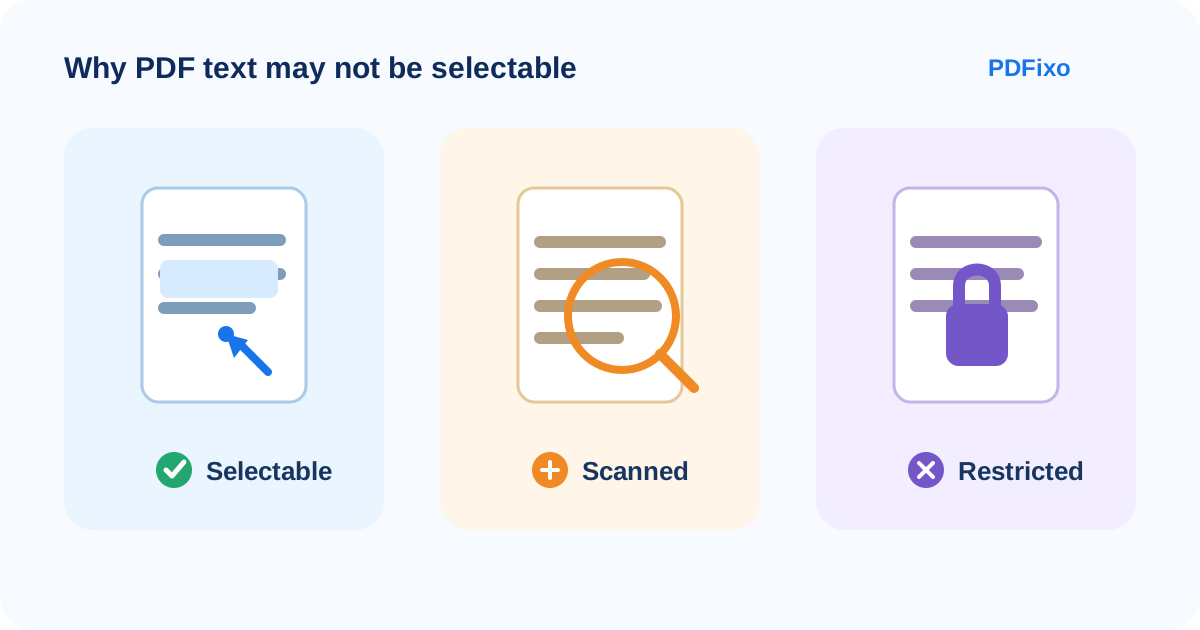
The most common case is a scanned or image-only page: the letters you see are pixels inside an image, not actual PDF text. But that is not the only possibility. A PDF can also contain real text while restricting copying or editing, and some files mix normal digital pages with scanned pages.
The useful question is therefore not simply, “Why can’t I select this?” It is:
Does this page contain real text, an image of text, or real text with restrictions?
Once you know that, the next step is much clearer.
A 30-second test before you choose a tool
Try these checks on one page of the PDF.
- You can highlight individual words or characters: Likely situation: The page probably contains a text layer — Useful next step: Try direct PDF editing
- Dragging selects nothing, or the page behaves like one large image: Likely situation: The page may be scanned/image-only — Useful next step: Use OCR
- Search cannot find a clearly visible word: Likely situation: The page may lack usable searchable text — Useful next step: Test OCR/scanned workflow
- Text is selectable, but copy/edit actions are blocked: Likely situation: The PDF may have permissions or other restrictions — Useful next step: Check the document restrictions rather than treating it as an OCR problem
- Some pages work and others do not: Likely situation: The PDF may contain mixed digital and scanned pages — Useful next step: Handle pages according to their content
These tests are diagnostic, not absolute. For example, a scanned PDF may already contain an OCR-generated invisible text layer, so text can sometimes be searchable even though the visible page is still an image.
What “real PDF text” actually means
A digitally generated PDF often contains text objects. A PDF viewer can recognize the characters, which is why you can usually select a word, copy it, search for it or let an editor identify a text region.
A scanned page starts differently. A scanner or camera captures the page as an image. To you, the image clearly contains a sentence. To software, however, it initially contains pixels.
This distinction matters because an editor cannot reliably treat pixels as editable letters until a recognition step has interpreted them.
That recognition step is OCR — optical character recognition.
The W3C describes image-only scanned documents as containing images rather than searchable text, which is why the words cannot be selected, edited or extracted like normal text until OCR has created actual text information. Adobe gives similar practical guidance: if text cannot be selected because it is part of an image, OCR is the appropriate next step.
Case 1: The text is selectable
If you can highlight individual words, you probably do not need OCR just to make a small text change.
In PDFixo, the Edit PDF workspace is intended for existing selectable text in digitally generated PDFs. You can open the document, select a detected text region, replace or remove text, and adjust formatting controls where necessary.
Edit selectable PDF text in PDFixo
Before downloading, look beyond the changed word itself. Check the whole line or paragraph. A replacement that is longer than the original can affect spacing, and the original font may not always be reproducible exactly.
If the correction is small—a typo, date or permitted change to your own document—direct editing is normally more focused than converting the entire file to Word.
Case 2: The page behaves like an image
If you cannot select a word and the whole page behaves like one flat picture, OCR is the more relevant workflow.
OCR analyzes the image and attempts to identify characters and words. That can create text that is searchable, editable or exportable depending on the workflow.
PDFixo supports OCR-enabled handling for scanned pages, and its PDF to Word tool can process digital and scanned PDFs. For a scanned document that ultimately needs extensive rewriting, converting the recognized content to editable Word may make more sense than trying to treat the original image like normal PDF text.
Convert a scanned PDF to editable Word
The important word here is recognition. OCR is an interpretation of an image, not recovery of a hidden perfect original.
Case 3: The text is real, but editing or copying is restricted
Do not automatically run OCR just because an action is unavailable.
Adobe notes that a PDF author can restrict operations such as copying. A document can therefore contain real selectable text while certain actions remain disabled.
That is a permissions problem, not an image-recognition problem.
Check the document's security or permission status and make sure you are authorized to make the intended change. OCR should not be presented as a way to bypass restrictions imposed by the document owner.
Searchable, selectable and editable are related—but not identical
These terms are often used as though they mean the same thing.
They do not.
A searchable PDF has text information that lets software find words.
A selectable PDF lets you interact with that text layer in the viewer.
An editable PDF depends on more than the presence of text. The way fonts, text regions, security settings and page structure are stored can affect what an editor can change cleanly.
This is also why two PDFs that look almost identical on screen can behave very differently when you click their text.
What OCR can solve
OCR is useful when the source page is genuinely image-based.
Typical examples include:
- paper documents scanned to PDF;
- photographed forms or notices;
- old documents saved as page images;
- mixed PDFs where only some pages are scans.
After OCR, you may be able to search the recognized words, use recognized regions for editing, or export the content to another format such as Word.
What OCR cannot guarantee
OCR should not be treated as a promise of perfect transcription.
Recognition quality depends on the source. Blur, skew, glare, low contrast, tiny type, damaged originals and unusual layouts can all make characters harder to interpret. OCR engines can also misread names, dates, amounts and similar high-consequence details even when most of a page looks correct.
After OCR, check at least:
- names and proper nouns;
- dates;
- monetary amounts and measurements;
- reference or identification numbers;
- headings;
- line and paragraph order;
- tables or multi-column sections.
If the text is important enough that one wrong character matters, compare the recognized output with the original page.
What if only some pages are scanned?
Mixed PDFs are common.
A report might begin as a normal digital document and then include photographed receipts, signed pages or scanned annexures. One page may be directly editable while the next requires OCR.
Do not force the whole document into one diagnosis.
Test the page you actually need to work on. PDFixo's PDF-to-Word Auto workflow is designed to keep trustworthy digital text editable and use OCR when a page needs it, which is useful for documents that are not uniform from page to page.
A simple decision flow
Use this sequence:
1. Can you select individual words?
If yes, try direct editing.
If no, continue.
2. Does the page behave like one image?
If yes, use an OCR-enabled workflow.
If no—or if the behavior is inconsistent—check the file in another viewer and inspect whether security restrictions or unusual document structure are involved.
3. Do you need a small correction or extensive rewriting?
For a small permitted correction in selectable text, direct PDF editing is usually the narrower workflow.
For a scanned page or a document that needs substantial rewriting, OCR plus Word conversion may be more practical.
The shortest useful rule
If you remember only one thing, use this:
Selectable text → direct editing. Image-only text → OCR. Selectable text with blocked actions → check permissions.
That avoids two common mistakes: trying to “edit” pixels as if they were text, and running OCR on a problem that is actually caused by document restrictions.
Next step
Open the file in PDFixo Edit PDF and test whether the words are selectable. If the page is image-only and you need editable text outside the PDF, use PDFixo PDF to Word with the appropriate OCR workflow.
Found an unclear step or an outdated detail? Tell our support team.