Scanned PDF vs Digital PDF: Which Editing Method Should You Use?
Learn how to tell a scanned PDF from a digital PDF and choose direct editing, OCR or PDF-to-Word without using the wrong workflow.
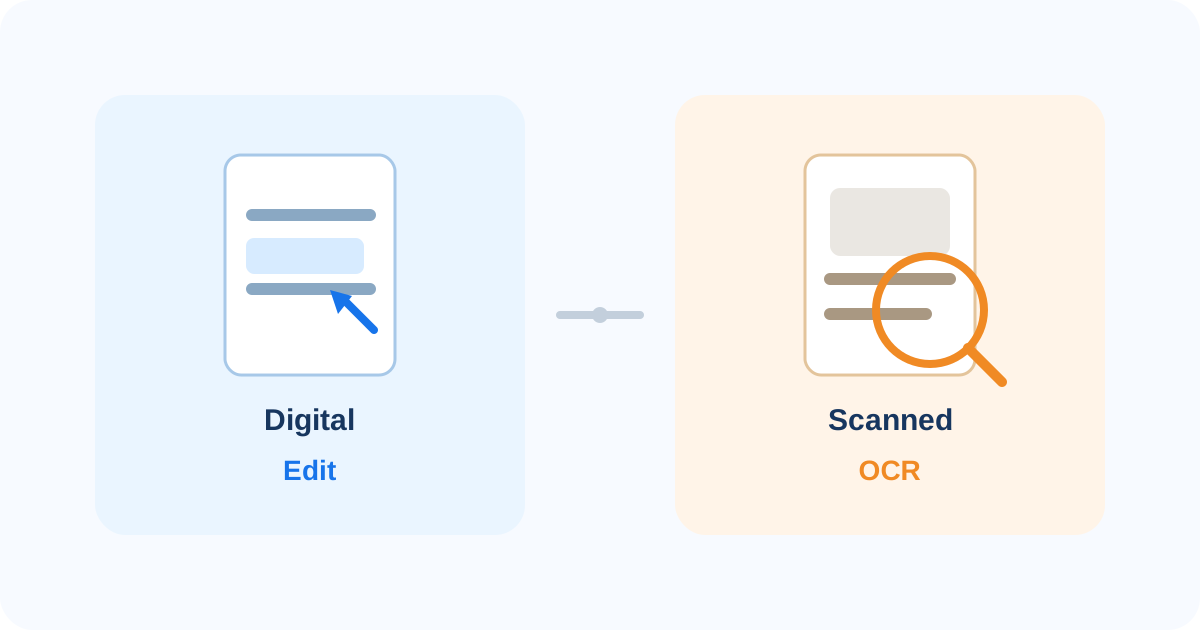
Two PDFs can look almost identical on screen and still behave very differently when you try to edit them.
One may contain real text that you can select and change directly. The other may be a page image created by a scanner or camera. That second file usually needs OCR before its words can be treated as editable text.
The practical rule is:
Digital text → edit directly. Image-only scan → use OCR. Mixed document → handle each page according to what it contains.
The important step is to identify the document type before choosing the tool.
Quick comparison: digital PDF vs scanned PDF
- Can you select individual words?: Digital PDF: Usually yes — Scanned/image-only PDF: Usually no
- Can search find visible words?: Digital PDF: Usually yes — Scanned/image-only PDF: Usually no, unless OCR text already exists
- Does the page behave like one image?: Digital PDF: Usually no — Scanned/image-only PDF: Often yes
- Best first workflow: Digital PDF: Direct PDF editing — Scanned/image-only PDF: OCR or OCR-enabled conversion
- Can both types exist in one file?: Digital PDF: Yes — Scanned/image-only PDF: Yes
These are practical clues, not absolute rules. A scanned PDF can already contain an OCR-generated text layer, so it may be searchable even though the visible page is still an image.
What is a digital PDF?
A digital PDF is usually created directly from software such as Word, Excel, PowerPoint, a browser, a design application or another document system.
Its text is often stored as actual PDF text objects.
That usually means you can:
- select words;
- copy text;
- search for a phrase;
- let a PDF editor identify text regions;
- make targeted edits without first running OCR.
PDFixo's Edit PDF workflow is designed for existing selectable text in digitally generated PDFs.
If you only need to fix a small typo, date or number, direct editing is normally the narrower workflow.
What is a scanned PDF?
A scanned PDF often starts as a paper page.
A scanner or phone camera captures the page as an image, then places that image inside a PDF.
The words are visible to you, but software may initially see only pixels.
The W3C's PDF accessibility guidance describes this distinction clearly: a scanned image of text is not the same as actual searchable text. OCR is the step that interprets the image and creates text information.
That is why a scanned page may look perfectly readable while refusing to behave like editable text.
Three fast tests to identify what you have
You do not need a technical PDF inspector for the first diagnosis.
Test 1: Try to select one word
Drag across a word.
If individual characters or words highlight, the page probably contains a usable text layer.
If nothing highlights and the entire page behaves like a picture, the page may be image-only.
If you cannot select text at all but other signs suggest real text, document restrictions or unusual PDF structure may be involved. See why PDF text may not be selectable.
Test 2: Search for a visible phrase
Use the PDF viewer's search function and type a word that is clearly visible on the page.
If search finds it, some searchable text information exists.
If search returns nothing, the page may be image-only or the text layer may be incomplete.
A successful search still does not guarantee perfect editability. Searchable text, selectable text and cleanly editable text are related, but they are not identical properties.
Test 3: Check several pages
Do not assume the whole PDF has one content type.
A report may contain:
- normal digital pages;
- scanned signed pages;
- photographed receipts;
- image-only annexures;
- OCR-processed pages.
If page 2 behaves differently from page 20, the file may simply be mixed.
If the PDF is digital: use direct editing when possible
When the text is selectable and your change is small, direct editing avoids an unnecessary conversion step.
In PDFixo, the editor detects text regions in digitally generated PDFs and lets you replace or delete selected text. Manual formatting controls are available for font family, size, colour, background, bold, italic and underline.
That makes direct editing suitable for jobs such as:
- correcting a typo;
- changing a short date;
- updating a phone number;
- fixing a short heading;
- making another small permitted change.
A digital PDF can still be difficult to edit if the font is unavailable, the layout is complex, or the replacement is much longer than the original.
If the new text looks different from the surrounding PDF, see why edited PDF text can look different.
If the PDF is scanned: use OCR
For an image-only page, OCR is the more appropriate starting point.
OCR—optical character recognition—analyzes the page image and attempts to identify letters, words and text regions.
PDFixo supports OCR-enabled handling for scanned pages, and its PDF to Word workflow supports digital and scanned PDFs.
For a scanned PDF that needs substantial rewriting, converting the recognized text to editable Word can be more practical than trying to treat the source image as ordinary digital text.
PDFixo's PDF-to-Word tool currently offers:
- Auto;
- English OCR;
- Hindi OCR;
- Hindi + English OCR;
- Preserve Layout.
The live product description says Auto keeps trustworthy digital text editable and uses OCR when a page needs it.
That is particularly relevant for mixed documents.
What if your document contains both digital and scanned pages?
Mixed PDFs are common.
For example:
- the main report was exported from Word;
- a signed approval page was scanned;
- several receipts were photographed;
- an old appendix was imported as images.
The right workflow does not have to be all-or-nothing.
Treat the file page by page.
PDFixo's PDF-to-Word Auto workflow is designed to keep reliable digital text editable while using OCR when a page requires recognition.
That does not mean every mixed document will convert perfectly. Complex pages still need review.
Searchable PDF and editable Word are different outcomes
OCR can serve different goals.
You may want:
- a PDF whose words can be searched;
- recognized text that can be copied;
- editable text regions inside a PDF workflow;
- a Word document for larger rewriting.
Those are not the same output.
If your only goal is to find a phrase later, a searchable text layer may be enough.
If you need to rewrite paragraphs, restructure content or make repeated changes, editable Word may be more suitable.
Choose the workflow based on what you need to do after recognition.
When Image to Word is the better route
Sometimes your source is not a PDF at all.
If you have:
- a phone photo;
- a JPG;
- a PNG;
- a scan saved as an image;
use an image OCR workflow rather than first creating a PDF only to convert it again.
PDFixo's Image to Word tool is intended for photos and scans and supports Auto, English, Hindi and Hindi + English modes.
That keeps the workflow closer to the original source.
OCR still needs verification
OCR does not reconstruct a perfect hidden original.
Recognition quality depends on the source image.
Blur, skew, low contrast, glare, small text and damaged originals can cause mistakes. Names, dates, amounts and identifiers deserve particular attention because one wrong character may change meaning.
After OCR, check:
- names;
- dates;
- amounts;
- phone/reference numbers;
- headings;
- table values;
- line and reading order.
W3C guidance similarly recommends checking OCR output for completeness and correct reading order.
A simple decision sequence
Use this order:
1. Can you select individual words?
Yes: start with direct editing.
No: continue.
2. Does the page behave like one image?
Yes: use OCR.
Not sure: try search and check another viewer before assuming the page is scanned.
3. Do different pages behave differently?
Yes: treat the PDF as mixed and use a workflow that can preserve digital text while applying OCR only where needed.
4. What is your final goal?
Small correction: direct PDF editing.
Recognize scanned text: OCR.
Large rewrite: OCR/PDF-to-Word.
Photo or standalone scan: Image-to-Word.
The shortest useful rule
Do not choose the tool based only on how the page looks.
Choose it based on what the PDF actually contains:
real text → edit; image of text → OCR; mixed pages → mixed workflow.
Next step
If the text is selectable, open PDFixo Edit PDF.
If the page is image-only and you need editable content, use PDFixo PDF to Word.
If your source is a photo or image file rather than a PDF, use PDFixo Image to Word.
Found an unclear step or an outdated detail? Tell our support team.