Extract Nonconsecutive PDF Pages Without Losing Their Context
Choose nonconsecutive PDF pages with a clear range list. Verify viewer page numbers, missing context and the downloaded subset before sharing.
When you need only selected pages, extract a subset instead of converting the whole document. The important choice is which page numbers your viewer uses: a printed page label may not match the page's position in the PDF.
As an illustrative example, a file might have two unnumbered cover pages followed by printed page 1. The viewer's third page is then the printed page 1. A request for “page 3” is ambiguous until you establish which numbering system is intended.
Identify the exact pages
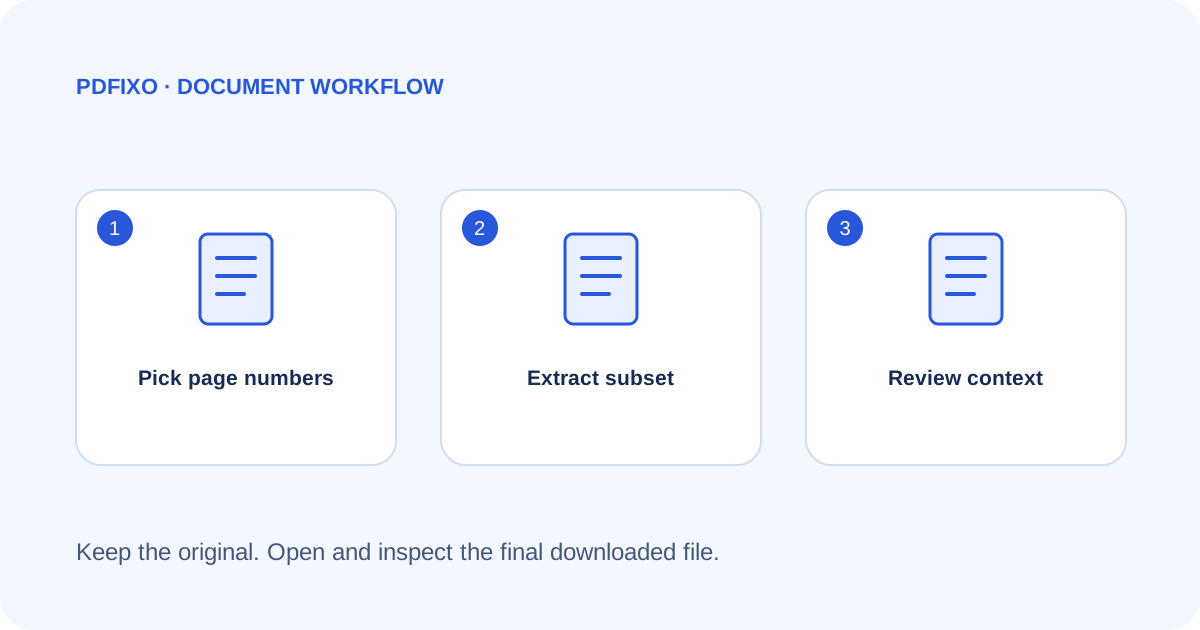
Open the original and write down the positions shown by the PDF viewer. Check every requested page visually, including pages that look like duplicates. Ask for clarification if someone has specified only printed page labels.
Consider the surrounding context. A table heading might be on one page while the values continue on the next. A signature might refer to a preceding statement. Extracting a page does not make it a self-contained document.
Enter a range deliberately
- Open Split PDF and choose the original PDF.
- For a selected subset, enter the required page positions or supported ranges, for example 1-3,5,8-10.
- Use the selected-page extraction operation rather than splitting every page if you need one subset document.
- Read any range-validation message. Do not silently replace an invalid page number with a guess.
- Download the result through the site's current authorization flow, then open it independently.
The example range above selects seven positions: 1, 2, 3, 5, 8, 9 and 10. It is only appropriate for a source containing those pages; always verify the actual file.
Compare the extracted document
Match the first and last selected pages against the source. Count the result pages and inspect any table, paragraph or diagram that crosses a boundary. Check whether page labels now look discontinuous; that may be correct for an extract, but explain it to the recipient if needed.
If the pages are images rather than selectable text, extraction does not perform OCR. Read the scan-versus-digital guide before planning a later text-editing step.
Avoid unnecessary transformations
Keep the original unchanged. Do not first convert the PDF to images merely to extract a few pages; use the page tool suited to the task. If you need to join this subset to another document, continue with Merge PDF and check the new joins.
The supported extraction workflow is described on PDFixo's Split PDF page. This guide does not promise preservation of every advanced PDF feature, bookmark or form behavior. Inspect any such feature in the downloaded subset before relying on it.
Found an unclear step or an outdated detail? Tell our support team.