
OCR Accuracy Problems: How Blur, Skew, Contrast and Scan Quality Affect Text Recognition
See how blur, skew, glare, noise, small text and cutoff affect OCR, what to fix first, and what to verify after recognition.
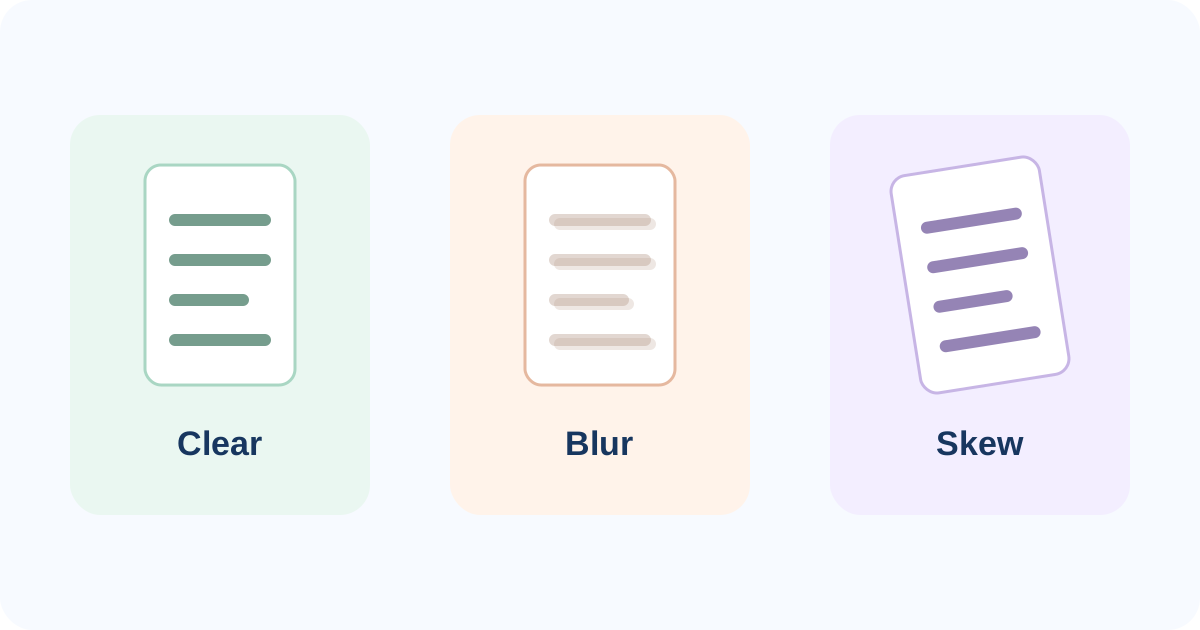
OCR errors often begin before recognition starts.
If the source image is blurry, skewed, dark, noisy, cut off or too small, the OCR engine receives incomplete or ambiguous character shapes.
The practical order is:
fix missing or damaged image information first → then rerun OCR → then verify critical text.
Changing language settings repeatedly will not recover information that the image never captured clearly.
A quick diagnosis table
- Many wrong letters across a line: Likely source problem: Blur or low resolution — First action: Recapture or use a sharper source
- Lines recognized in the wrong order: Likely source problem: Skew or perspective — First action: Straighten/deskew the page
- Characters disappear in bright areas: Likely source problem: Glare or overexposure — First action: Recapture with even lighting
- Text merges into background: Likely source problem: Low contrast or shadow — First action: Improve lighting/contrast or rescan
- Extra characters appear: Likely source problem: Noise, speckles or dark borders — First action: Clean/crop the source
- Final letters or columns are missing: Likely source problem: Cutoff/crop — First action: Recapture the full page
- Tiny print is unreliable: Likely source problem: Insufficient detail — First action: Use a higher-quality source
These are starting diagnoses, not guarantees. Several defects can exist at the same time.
Blur removes character detail
Blur is one of the most damaging OCR problems because it changes the shapes the recognizer sees.
When edges become soft, similar characters can become hard to distinguish.
That can produce mistakes such as:
- numbers read as letters;
- adjacent letters merged together;
- punctuation disappearing;
- small characters becoming unreadable.
Google's current Document AI documentation explicitly tracks blurriness as an image-quality defect.
Tesseract also documents image quality and rescaling as important recognition factors.
What to do
If the text is visibly out of focus at normal zoom, recapture the document if possible.
Do not assume software sharpening or upscaling can reconstruct detail that was never captured.
Skew hurts line segmentation
A page can be readable to a person while still being too tilted for reliable OCR.
Tesseract notes that excessive skew can significantly reduce the quality of line segmentation.
That matters because OCR first has to determine where text lines begin and end before recognizing individual characters.
What to do
Straighten the page so text lines are close to horizontal.
For a phone photo, perspective distortion can also matter. Keep the camera as parallel to the document as practical.
Low contrast and uneven lighting hide strokes
OCR needs to separate text from background.
That becomes harder when:
- grey text sits on a grey background;
- one side of the page is in shadow;
- the paper is stained or yellowed;
- a phone photo has strong brightness variation;
- glossy paper reflects a light source.
Tesseract documents binarization and uneven background problems. Google also includes glare and related quality issues in its document-quality features.
What to do
Use even lighting and avoid reflections across the text.
If rescanning is possible, a cleaner source is usually more valuable than repeatedly changing OCR settings.
Noise can create false characters
Noise is random visual variation such as:
- speckles;
- compression artifacts;
- dust;
- old-paper texture;
- dark scanner edges;
- background marks.
Tesseract documents noise removal and border handling because these defects can interfere with recognition.
What to do
Crop unnecessary scanner borders and use the cleanest available image.
Do not overprocess the page until thin characters disappear.
Small text needs enough real detail
Fine print can fail even when larger text on the same page recognizes correctly.
That is because small letters occupy fewer pixels and leave less information for the recognizer.
Google includes smaller-than-usual fonts in its image-quality analysis, and Tesseract discusses rescaling and text size as recognition considerations.
What to do
Use a higher-quality source when possible.
Move closer when photographing a page, while still keeping the full document in frame.
Do not treat a digitally enlarged blurry image as equivalent to a genuinely sharper source.
Cutoff is different from blur
If part of a word or table column is outside the image, OCR cannot reliably infer the missing information.
This is different from a character that is merely slightly blurry.
Cutoff affects:
- page edges;
- table columns;
- headers and footers;
- signatures;
- reference numbers;
- dates or amounts near the border.
What to do
Recapture the full page.
Do not crop tightly until after you have preserved all important content.
Language mismatch is a separate problem
A clear scan can still produce poor OCR if the recognizer is using the wrong language context.
PDFixo currently exposes Auto, English, Hindi and Hindi + English choices in its OCR-enabled conversion workflows.
That solves a different problem from image quality.
A correct Hindi mode cannot fix blur.
A correct English mode cannot restore cropped content.
For language selection, see Hindi + English OCR: Which Language Mode Should You Choose for Mixed Documents?.
What PDFixo can and cannot do here
PDFixo provides OCR-enabled workflows through:
- Image to Word for photos and scans;
- PDF to Word for digital or scanned PDFs.
The article does not assume PDFixo exposes every image-preprocessing control documented by OCR engines.
The practical PDFixo workflow is to improve the source where possible, choose the appropriate OCR mode, run recognition, then verify the output.
What to verify after OCR
Do not review only the easiest paragraph.
Check fields where one character matters:
- names;
- dates;
- amounts;
- percentages;
- phone numbers;
- IDs and reference numbers;
- table totals;
- email addresses;
- headings;
- reading order.
W3C's PDF OCR guidance likewise recommends checking converted text for completeness and correct reading order.
When rescanning is faster than manual correction
Rescan or recapture when:
- almost every line contains errors;
- the page is visibly out of focus;
- glare hides text;
- the document is badly skewed;
- important content is cut off;
- small text is unreadable in the source;
- dark borders or noise dominate the page.
Manual cleanup is more reasonable when recognition is broadly correct and only a few isolated characters need attention.
How P07 and P09 differ
If you are preparing a photo before conversion, use the practical Image-to-Word checklist.
P09 goes deeper: it helps diagnose why recognition failed after OCR has already produced bad output.
That distinction prevents one generic article from trying to solve both capture and technical troubleshooting.
The shortest useful rule
Prioritize defects in this order:
cutoff → blur/glare → skew → contrast/noise → language choice → verification.
If the source is missing information, recapture it before doing anything else.
Next step
Improve the source image first, then rerun the appropriate PDFixo OCR workflow.
For a photo or scan, use Image to Word.
For a scanned PDF, use PDF to Word.
Found an unclear step or an outdated detail? Tell our support team.