
Hindi + English OCR: Which Language Mode Should You Choose for Mixed Documents?
Learn when to use Auto, English, Hindi or Hindi + English OCR for scanned PDFs and document photos, and what to verify afterward.
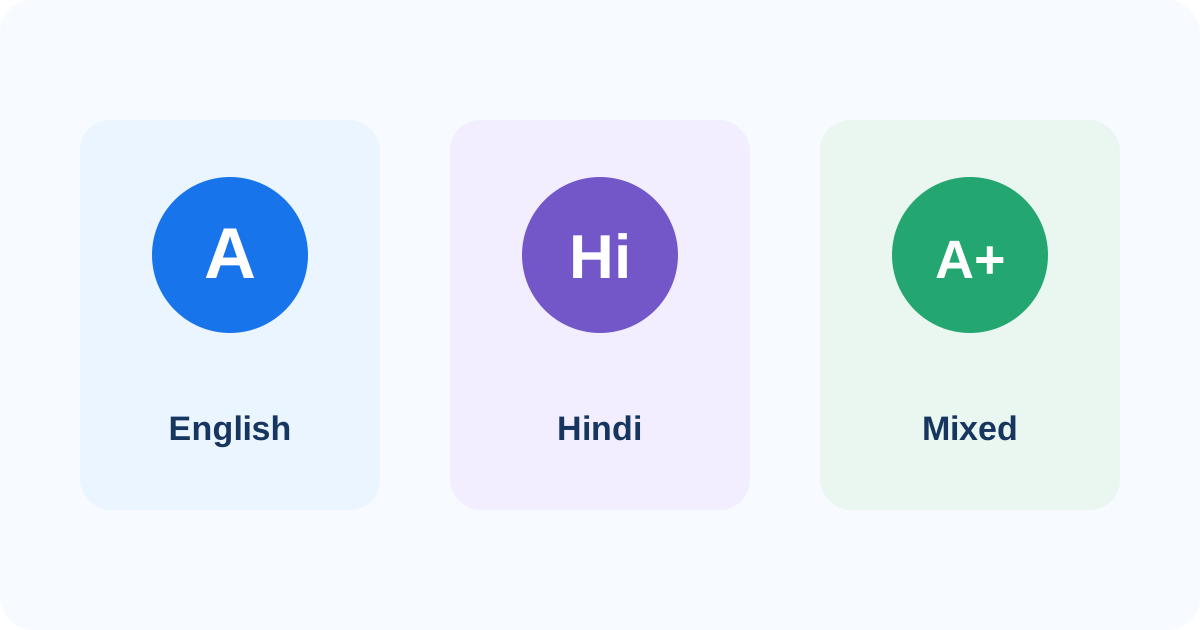
If your scanned document contains Hindi, English or both, the OCR language setting can affect recognition.
The simplest PDFixo rule is:
Mostly English → Auto or English.
Mostly Hindi → Auto or Hindi.
Meaningful Hindi + English on the same pages → Hindi + English.
The language setting guides recognition. It does not repair blur, skew, glare or missing image detail.
What OCR language selection actually does
OCR has to decide which characters and word patterns are plausible in the image.
A language model gives the recognizer context about the script and language it should expect.
Tesseract officially supports multiple languages in one OCR run and documents Hindi + English as a bilingual example.
That does not mean selecting more languages is always better.
Use the setting that best reflects the content actually present on the page.
When Auto is the best starting point
PDFixo presents Auto as the default for most documents.
Use Auto when:
- you are not sure which language dominates;
- the file contains ordinary mixed content;
- different pages may use different scripts;
- you want the tool to make the initial decision.
Auto is a starting workflow, not a guarantee of perfect recognition.
If the result is poor and you know the document language, rerunning with an explicit language mode can be a reasonable next step.
When to choose English
Choose English when the meaningful text is primarily English.
Examples:
- an English letter;
- an English form;
- a report with English headings and body text;
- a scanned office document in English.
A few numbers or symbols do not automatically make the document multilingual.
If the page is clearly English, an English mode gives the OCR engine a narrower language context.
When to choose Hindi
Choose Hindi when the document is predominantly Hindi in Devanagari script.
Examples:
- Hindi notices;
- Hindi study material;
- Hindi letters;
- forms where most descriptive text is in Hindi.
Do not assume every Devanagari page will recognize equally well.
Scan quality, typeface, print quality and layout still matter.
Older documents, decorative text or unusual printed forms can require more manual checking.
When Hindi + English is the better fit
Use Hindi + English when both scripts carry meaningful information.
Examples include:
- a Hindi notice with English headings;
- a Hindi form containing English names or identifiers;
- bilingual school material;
- government or office documents mixing Hindi instructions with English fields;
- a page where English abbreviations and Hindi body text both need to be recognized.
Tesseract's documentation explicitly shows combined recognition using Hindi and English language models together.
That supports the basic idea behind a mixed-language mode: the engine is told to expect both language sets.
Mixed-language does not mean 'contains one English number'
A Hindi page containing:
- a phone number;
- a date;
- a short code;
- a single Latin abbreviation;
does not necessarily need a full mixed-language workflow.
The better question is whether English words or Latin-script content are a meaningful part of the document.
If they are, Hindi + English is more defensible as a mode choice.
If they are not, Hindi or Auto may be enough.
How to choose the mode in PDFixo
PDFixo exposes the same basic language choices in both PDF to Word and Image to Word.
For a scanned PDF
Use PDF to Word.
Start with Auto unless you already know the document is clearly English, Hindi or meaningfully bilingual.
For a full scanned-PDF conversion workflow, see How to Convert a Scanned PDF to Editable Word Without Guessing the OCR Mode.
For a photo or image scan
Use Image to Word.
Choose the language after first checking that the photo itself is clear enough for OCR.
For image preparation, see How to Convert a Photo or Scan to Word: A Practical OCR Checklist.
Why the correct language mode can still produce errors
Language mode and image quality solve different problems.
A correct Hindi setting cannot restore a character hidden by glare.
A correct English setting cannot sharpen a blurred line.
A Hindi + English setting cannot reconstruct text that was cropped out of the image.
If recognition quality is poor, inspect the source before changing the language repeatedly.
What to verify in Hindi OCR output
Pay special attention to:
- matras;
- conjunct characters;
- similar-looking glyphs;
- names;
- dates;
- amounts;
- punctuation;
- line breaks.
A page can look broadly correct while one changed character alters the meaning.
What to verify in mixed Hindi + English output
Check both scripts separately.
For Hindi:
- matras;
- names;
- word boundaries;
- punctuation.
For English:
- names;
- abbreviations;
- email addresses;
- reference codes;
- numbers.
Mixed documents can contain correct Hindi text but a wrong English identifier, or the reverse.
Old or unusual Hindi fonts
OCR recognizes the visible shapes on the page.
It should not be described as recovering the original font encoding or source file.
Older or decorative Hindi print can be harder to recognize, especially when combined with poor scan quality.
Do not assume a language mode alone will solve those cases.
Should you always choose Hindi + English for safety?
No.
More language models do not automatically mean better output.
Tesseract documentation notes that language choice and language order can affect recognition behavior and processing.
Choose the narrowest mode that still matches the real content.
The shortest useful rule
Use:
Auto when you are unsure.
English when English dominates.
Hindi when Hindi dominates.
Hindi + English when both scripts carry meaningful text.
Then verify the converted output before relying on names, amounts, dates or identifiers.
Next step
For a scanned PDF, open PDFixo PDF to Word.
For a photo or standalone image, open PDFixo Image to Word.
If the language mode is correct but recognition is still poor, move to OCR Accuracy Problems: How Blur, Skew, Contrast and Scan Quality Affect Text Recognition.
Found an unclear step or an outdated detail? Tell our support team.