How to Convert a Scanned PDF to Editable Word Without Guessing the OCR Mode
Convert a scanned PDF to Word and learn when to use Auto, language-specific OCR or Preserve Layout in PDFixo.
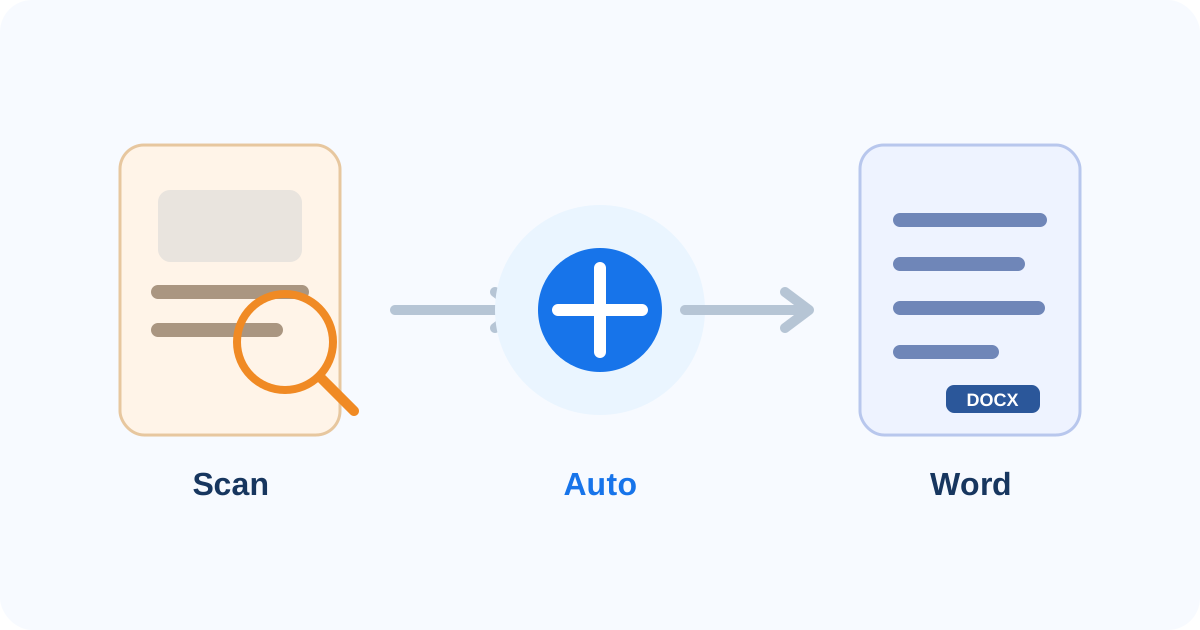
A scanned PDF looks like a document, but its pages may actually be images. To turn that content into editable Word text, a converter has to recognize the words first.
That is where OCR comes in.
The practical PDFixo rule is simple:
Start with Auto for most files. Choose a specific language when you know the scan needs it. Use Preserve Layout when visual similarity matters more than clean text reflow.
The goal is not to guess every technical setting. It is to choose the smallest amount of guidance the document actually needs.
First: confirm that the PDF is really scanned
Before you convert, try selecting a word.
If the text behaves like normal digital text, the PDF may not need OCR at all.
If the whole page behaves like one image, or search cannot find visible words, the document is more likely to need recognition.
If you are unsure, see Scanned PDF vs Digital PDF: Which Editing Method Should You Use?.
That classification matters because a digital PDF and a scanned PDF should not automatically be processed in exactly the same way.
Why a scanned PDF needs OCR before Word can edit the text
A scanned page contains image data.
The letters are visible to a person, but a Word document needs actual characters and document structure to make the content editable.
OCR—optical character recognition—interprets the page image and turns recognized characters into text.
The recognition is not a recovery of the original Word file. It is a new interpretation of what is visible on the page.
That is why the resulting DOCX should always be checked, especially when the document contains:
- names;
- dates;
- amounts;
- reference numbers;
- tables;
- small print;
- mixed languages;
- poor scan quality.
What PDFixo's Auto mode does
PDFixo's PDF-to-Word tool describes Auto as the recommended starting mode.
The current product logic is designed to keep trustworthy digital text editable and use OCR only when a page needs recognition.
That makes Auto useful for:
- ordinary scanned PDFs;
- mixed PDFs containing both digital and scanned pages;
- files where you are not sure which pages need OCR;
- documents where you do not need to force one language setting immediately.
Auto is not a promise of perfect recognition. It is the default workflow for letting the converter decide where OCR is required.
When to choose English
Use an explicit English mode when the scanned text is clearly English and you want OCR to use that language context.
This can be useful for:
- typed English letters;
- English forms;
- reports;
- printed notices;
- scanned office documents.
Selecting English does not repair a blurry or badly skewed page. Language guidance and image quality solve different problems.
If the scan itself is poor, fixing or rescanning the source may matter more than changing the OCR language.
When to choose Hindi
Use Hindi when the page is predominantly Hindi/Devanagari and you know the document language.
That can help the recognizer work with the expected script and language model.
Typical examples include:
- Hindi notices;
- scanned Hindi letters;
- Hindi study material;
- forms where most words are in Devanagari.
Do not assume that choosing Hindi guarantees perfect recognition.
Old scans, unusual typefaces, poor contrast, low resolution or damaged pages can still cause errors.
When to choose Hindi + English
Many real documents mix scripts.
For example:
- a Hindi body with an English heading;
- a Hindi form containing English names or IDs;
- bilingual notices;
- documents containing English abbreviations inside Hindi text.
Tesseract's OCR documentation supports recognition using multiple language models together and includes Hindi + English as a worked bilingual example.
PDFixo exposes a Hindi + English option for this kind of mixed-script content.
The important distinction is that P05 is not about choosing the perfect bilingual setting in every edge case. It is about knowing when the scanned PDF conversion workflow needs explicit language guidance.
For the deeper language-choice guide, see Hindi + English OCR: Which Language Mode Should You Choose for Mixed Documents?.
What Preserve Layout is for
Editable text and visual fidelity are different priorities.
A Word document has to reconstruct editable structure from a PDF page. That can move line breaks, tables, columns and other elements.
Microsoft's current guidance explains that PDF-to-Word conversion works by interpreting fixed PDF page content and rebuilding Word objects. The result may not look exactly like the original PDF.
PDFixo's Preserve Layout option is described as a visual-fidelity choice rather than the ordinary editable-Word path.
That does not mean Preserve Layout is always the best option.
Use it when the appearance of the page is the priority, then inspect the resulting DOCX to confirm it is editable enough for your task.
If you need to rewrite large sections, prioritize the output that gives you workable text structure even if the layout moves somewhat.
A practical mode-choice table
- Mostly ordinary scanned pages: Best starting choice: Auto
- Mixed digital and scanned pages: Best starting choice: Auto
- Clearly English scan: Best starting choice: Auto or English
- Clearly Hindi scan: Best starting choice: Auto or Hindi
- Meaningful Hindi + English content: Best starting choice: Hindi + English
- Visual fidelity is the priority: Best starting choice: Preserve Layout
This table is a starting point, not an accuracy guarantee.
Step-by-step: convert a scanned PDF to Word in PDFixo
1. Open PDF to Word
Go to PDFixo PDF to Word.
Choose the scanned PDF you want to convert.
2. Start with Auto unless you have a reason not to
For most documents, Auto is the simplest first choice.
If you know the page is specifically Hindi or Hindi + English, select that language mode instead.
3. Decide whether visual fidelity matters more than reflow
If the document has a complex layout and you mainly want it to look like the original page, consider Preserve Layout.
If you need to rewrite and restructure text, prioritize editable output instead.
4. Run the conversion
PDFixo's current PDF-to-Word page states that text extraction, OCR and Word creation run locally in the browser for this tool.
The tool also surfaces errors before download rather than silently returning an incomplete result.
5. Open the DOCX and verify it
Do not judge the conversion only by whether the file downloaded.
Compare the Word document against the original PDF.
Check:
- names;
- dates;
- numbers;
- amounts;
- headings;
- page order;
- tables;
- mixed-language sections;
- any field where one wrong character changes meaning.
What if the Word layout changes?
That is not necessarily an OCR failure.
OCR answers the question:
What text is on this image?
Word reconstruction answers a different question:
How should this content behave as an editable document?
A converter may recognize the text correctly while still reconstructing tables, columns or spacing differently.
For a deeper explanation, see Why PDF-to-Word Formatting Changes — and How to Reduce Layout Problems.
What if OCR keeps making mistakes?
Before switching modes repeatedly, inspect the source.
Recognition can suffer when the page is:
- blurry;
- skewed;
- too dark;
- low contrast;
- partially cut off;
- very small;
- noisy or heavily compressed.
Changing from Auto to another language mode will not restore image detail that is missing from the scan.
If recognition quality is poor, see OCR Accuracy Problems: How Blur, Skew, Contrast and Scan Quality Affect Text Recognition.
When the original source file is better
If you still have the original Word document, use that instead of converting a PDF back into Word.
PDF conversion is a reconstruction process.
The original authoring file already contains the intended paragraphs, styles, tables and editable structure.
Use OCR/PDF-to-Word when the PDF or scan is the best source you actually have.
The shortest useful rule
Use:
Auto when you are unsure or the file is mixed.
Use a specific language when you know the scan needs that guidance.
Use Preserve Layout when appearance matters more than flexible text reflow.
Then verify the DOCX before relying on it.
Next step
Open PDFixo PDF to Word, start with Auto, and switch to Hindi, Hindi + English or Preserve Layout only when the document gives you a reason to do so.
Found an unclear step or an outdated detail? Tell our support team.