Why PDF-to-Word Formatting Changes — and How to Reduce Layout Problems
See why PDF-to-Word conversion can move text, tables and page breaks, and how to choose between editability and visual fidelity.
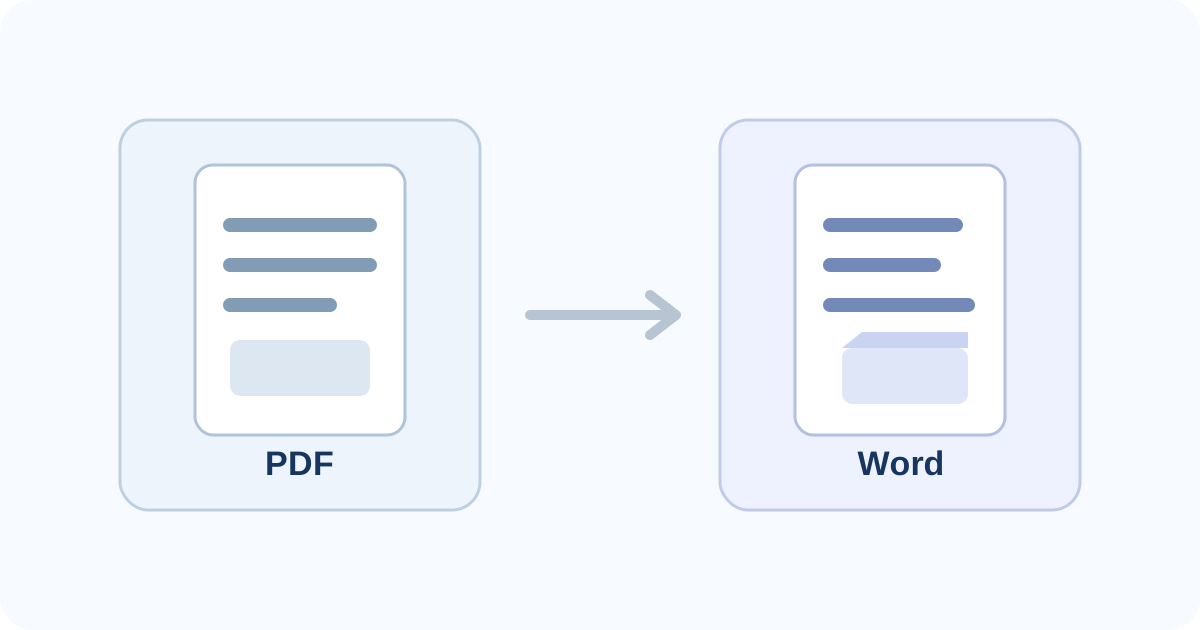
A PDF can look perfectly organized and still change when you convert it to Word.
Text may wrap differently. A table may move. Page breaks can shift. A heading can land on another line. Images may no longer sit exactly where they did in the PDF.
That happens because PDF and Word are built for different jobs.
PDF preserves a finished page. Word needs editable document structure.
When a converter turns PDF into DOCX, it has to infer that structure from the page. The more complex the original layout is, the more room there is for differences.
The core reason: PDF stores page position, not the original Word logic
Microsoft describes PDF as a fixed file format.
A PDF can store the position of text, pictures and vector graphics on a page without preserving all of the relationships that an editable Word document would normally contain.
For example, a PDF can visually show:
- a paragraph;
- a two-column section;
- a table;
- a footnote;
- a text box;
without storing those elements in the same structural form Word expects.
When Word or another converter rebuilds the file, it has to decide what those page objects probably represent.
That reconstruction is why the converted DOCX can differ from the visible PDF.
Why simple PDFs usually convert more cleanly
A mostly text-based document is easier to interpret.
For example, a report containing:
- normal paragraphs;
- simple headings;
- basic lists;
- a few images;
gives the converter relatively clear clues.
Microsoft's current support guidance says PDF-to-Word conversion works best with files that are mostly text.
The harder cases are pages where visual layout carries a lot of the structure.
Layout elements that are more likely to move
Columns
A PDF can store text in fixed coordinates.
A converter has to determine whether those coordinates represent:
- one paragraph;
- two columns;
- multiple text boxes;
- a table-like layout.
If that interpretation differs from the original authoring document, lines may reflow.
Tables
A visible table in a PDF may be stored as lines plus separately positioned text.
Word needs a real table structure with rows and cells.
The converter has to infer those relationships.
That can change:
- column widths;
- row heights;
- line breaks;
- cell alignment;
- page position.
Text boxes and positioned labels
Brochures, forms and designed documents often use text placed precisely in specific areas.
A DOCX may rebuild those areas differently because Word is optimized for editable flow rather than fixed page coordinates.
Unusual fonts
If the original font cannot be reproduced exactly, Word may substitute another font.
Even a similar-looking font can have different character widths and line spacing.
That can push text onto another line or change page length.
Footnotes, page borders and complex graphics
Microsoft lists several complex elements that may not convert perfectly.
When the converter cannot map an element cleanly to a Word structure, the result may be rearranged or treated differently.
Digital PDF vs scanned PDF: the problem is different
Not every formatting problem starts with the same source.
Digital PDF
A digital PDF may already contain real text.
The converter can often extract that text, then reconstruct paragraphs and other Word structures.
The main challenge is rebuilding the relationships between page elements.
Scanned PDF
A scanned PDF adds another step.
First, OCR has to recognize the text from the page image.
Then the converter has to rebuild Word structure from the recognized result.
That means a scanned document can have both:
- recognition errors; and
- layout reconstruction differences.
If you are still deciding which type of PDF you have, see Scanned PDF vs Digital PDF.
PDFixo Auto vs Preserve Layout
PDFixo's PDF-to-Word tool currently offers an Auto workflow and a Preserve Layout choice.
These serve different priorities.
Auto
The live PDFixo product copy describes Auto as the recommended path for editable Word.
It keeps trustworthy digital text editable and uses OCR when a page needs recognition.
Use Auto when your priority is:
- workable editable text;
- mixed digital/scanned pages;
- ordinary document editing;
- a Word file you expect to revise.
Preserve Layout
PDFixo describes Preserve Layout as the visual-fidelity option.
Use it when your priority is keeping the page appearance closer to the PDF.
Do not assume that visual fidelity and clean editable structure are the same goal.
The right choice depends on what you need to do after conversion.
How to reduce layout problems before conversion
You cannot eliminate every conversion difference, but you can reduce avoidable problems.
1. Start from the best source available
If the original Word, PowerPoint, Excel, InDesign or other authoring file still exists, edit that source instead.
A PDF is already a final-output format.
Converting it back to Word asks software to reconstruct information the source file already had.
2. Identify whether the file is scanned
If the PDF is image-only, OCR quality becomes part of the problem.
A blurry or skewed scan can create bad text before Word layout reconstruction even begins.
3. Choose the output priority before converting
Ask:
Do I need editable text, or do I mainly need the page to look the same?
That answer should guide Auto vs Preserve Layout.
4. Avoid unnecessary format hops
Do not convert:
PDF → image → PDF → Word
unless the workflow genuinely requires it.
Every transformation can discard or reinterpret information.
Use the shortest path from your best source to the format you actually need.
What to check after conversion
Open the DOCX and inspect more than the first page.
Check:
- page count;
- headings;
- paragraph breaks;
- tables;
- column order;
- images;
- page breaks;
- footnotes;
- lists;
- font substitutions;
- headers and footers;
- scanned/OCR text;
- names, dates, amounts and reference numbers.
A document can look acceptable at first glance while still containing a table or page-break error later in the file.
When direct PDF editing is better than conversion
If you only need to change one short item, conversion may be unnecessary.
For example:
- one typo;
- one date;
- one number;
- a short label.
In those cases, editing the PDF directly can reduce the risk of changing unrelated layout.
If the replacement text itself looks mismatched, see why edited PDF text looks different.
When Word conversion is the better choice
Conversion makes more sense when you need to:
- rewrite paragraphs;
- reorganize content;
- use Word's styles;
- make repeated edits;
- restructure a long document;
- work with content that is easier to manage in an editable document model.
The tradeoff is that layout may need cleanup afterward.
What if Preserve Layout still does not look perfect?
Treat Preserve Layout as a fidelity-oriented workflow, not a guarantee of pixel-perfect reconstruction.
Very complex PDFs may contain:
- unusual fonts;
- overlapping objects;
- diagrams;
- irregular tables;
- scanned elements;
- multiple text layers;
- positioned graphics.
A conversion tool has to interpret that complexity.
If appearance must be exact, keep the original PDF as the reference and compare the converted output page by page.
The shortest useful rule
Remember:
PDF = finished page positions. Word = editable document structure.
Conversion has to rebuild the second from the first.
Use Auto when editable Word is the priority.
Use Preserve Layout when visual fidelity is the priority.
Then review the result before relying on it.
Next step
Open PDFixo PDF to Word, choose the workflow based on whether editability or visual fidelity matters more, and compare the DOCX with the original PDF after conversion.
Found an unclear step or an outdated detail? Tell our support team.